
TikTok Video Maker: How to Pick, Create and Schedule
A 2025 academic study estimated that TikTok produced approximately 269 million posts on the sampled day. That scale changes the job. A useful TikTok video maker isn't just an effects library, it's a publishing system that gets specs, captions, disclosure, localization and scheduling right before export.
Table of Contents
- What a TikTok Video Maker Does and Who Needs One
- Core Features a Usable TikTok Video Maker Needs
- TikTok Export Specs Your Maker Must Hit
- How to Build a Video in Six Steps
- Turning Rough Clips Into Captioned Posts With revid.ai
- Localizing One Video for Several Markets
- AI Disclosure Before You Publish
- Schedule Finished Videos on a Steady Cadence
- Connect Accounts and Run a Test Batch
What a TikTok Video Maker Does and Who Needs One
A TikTok video maker is software that turns raw footage into a vertical, platform-ready file with captions, music, a cover frame and export settings. Think of it as a prep kitchen. Ingredients can come from anywhere, but the tool decides whether the finished dish leaves on time and in the right form.
Three groups feel that pressure most:
- Solo creators: They post several times a week, so time per video is the main pain.
- Small brands: They repurpose existing footage, so consistency across posts matters most.
- Agencies: They handle client batches, so handoff errors are the expensive failure.
Repeat publishing isn't evenly spread. In an August 2023 Pew Research Center survey of 2,745 U.S. adult TikTok users, 52% had ever posted a video and 40% had posted a publicly visible video, while the most active 25% produced 98% of all publicly accessible videos. That finding is U.S.-specific, but it shows the workload clearly.
If output exceeds three videos a week, workflow and export reliability matter more than the effects library.
Core Features a Usable TikTok Video Maker Needs
Features should be judged by how often they decide whether a post works, not by how impressive a demo looks.
- 9:16 framing: It keeps faces and action inside the frame. Check edges before export.
- Captions and text overlays: They must clear safe zones where TikTok's interface covers the bottom and right edges.
- Trim and duration variants: Several lengths can come from one source while opening frames stay identical, so tests stay fair.
- Music and sound licensing: Commercial use needs confirming for each track, not assuming.
- Cover selection: A chosen image or frame shapes the first impression on profile grids, so frame time needs setting per post.
- Export presets: They should output platform-ready MP4 files with matching bitrate and codec.
- Preflight warnings: Oversized files, wrong resolution or wrong frame rate should surface before upload.
- Scheduling integration: Finished files go to a calendar only when time zones and account mapping are correct.
Score any tool by counting native features rather than workarounds. Reject a maker that can't export a compliant master without manual fixes.
TikTok Export Specs Your Maker Must Hit
Start with one 9:16 vertical master instead of resizing during upload. Resizing late invites bad crops and repeated compression.
TikTok's official advertising specifications recommend 9:16 video at a minimum of 540 × 960 pixels, with a recommended bitrate of at least 2,500 kbps.
| Specification | Recommended Value | Accepted Range or Limit |
|---|---|---|
| Aspect ratio | 9:16 vertical | 16:9 and 1:1 accepted at larger minimum sizes |
| Minimum resolution | 540 x 960 pixels | API accepts 360 to 4,096 pixels |
| Container | MP4 | MOV, MPEG and 3GP also supported for ads |
| Video codec | H.264 | Recommended for the Content Posting API |
| Frame rate | Match source footage | 23 to 60 fps |
| Bitrate | At least 2,500 kbps | No maximum stated |
| File size | Under 500 MB for ads | Up to 4 GB via API; chunked upload above 64 MB |
H.264 in MP4 is the safe default for cross-account publishing. Frame rate should match the source rather than forcing conversion. Bitrate is the spec makers most often get wrong, because low bitrate softens text and motion first.
File-size limits also differ by route. Files above 64 MB require chunked transfer, so validation before export prevents failed publishes and quality loss from platform-side transcoding. Each platform has its own size, length, and aspect-ratio rules for media, and editors should try a standard JPG, PNG, or MP4 within the platform's limits.
Run one test clip through preflight and play it on a phone before queuing a batch.
How to Build a Video in Six Steps
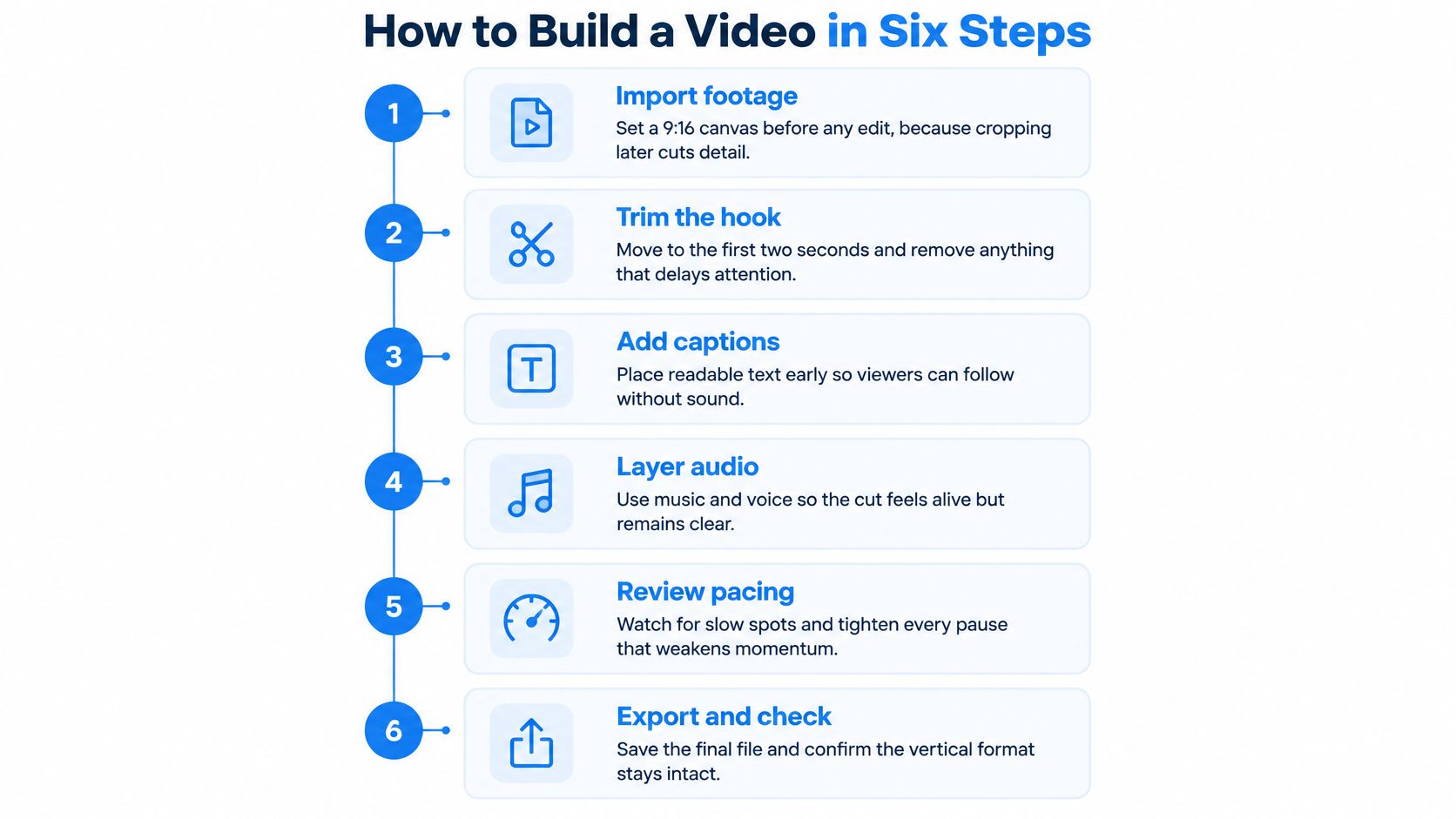
- Import footage and set the canvas. Set a 9:16 canvas before any edit, because cropping later cuts detail. The usual slip is editing in horizontal format, then discovering faces or product details sit outside the vertical frame.
- Trim to the hook. Put the strongest claim, movement or question in the first two seconds, since the opening frame decides whether viewers stay. A slow logo intro wastes that moment. Say a recipe opens on finished steam rising, not on an empty counter.
- Add captions inside safe zones. Keep captions and on-screen text clear of interface icons, because overlays under buttons become unreadable. Short lines beat dense blocks. Check spelling too, since burned-in errors can't be fixed after export.
- Place music and confirm rights. Sync music to the cut so beats support cuts rather than fighting speech. Confirm usage rights at this stage, since a track removed after publishing can cost reach and force a repost.
- Choose the cover frame. Pick the frame or image that reads at thumbnail size and check its frame time. A blurred transition makes a strong video look unfinished on the profile grid.
- Run preflight and export the master. Export a master MP4 with H.264 and check ratio, resolution, bitrate, codec and file size. Re-exporting an already compressed file adds artifacts, so keep the master untouched.
The Finished File Test
Play the export muted with captions on. The first two seconds should still hold attention, text should stay readable, audio should sound clean when sound returns, and the cover should make sense without context.
Mute test: If the story disappears without sound, captions or visuals need more work.
Turning Rough Clips Into Captioned Posts With revid.ai
Rough ideas, links and loose clips often stall before they become posts. revid.ai is built for that starting problem. It turns ideas or existing content links into social videos for TikTok, Instagram and YouTube, with automation for people who don't have prior editing skills.
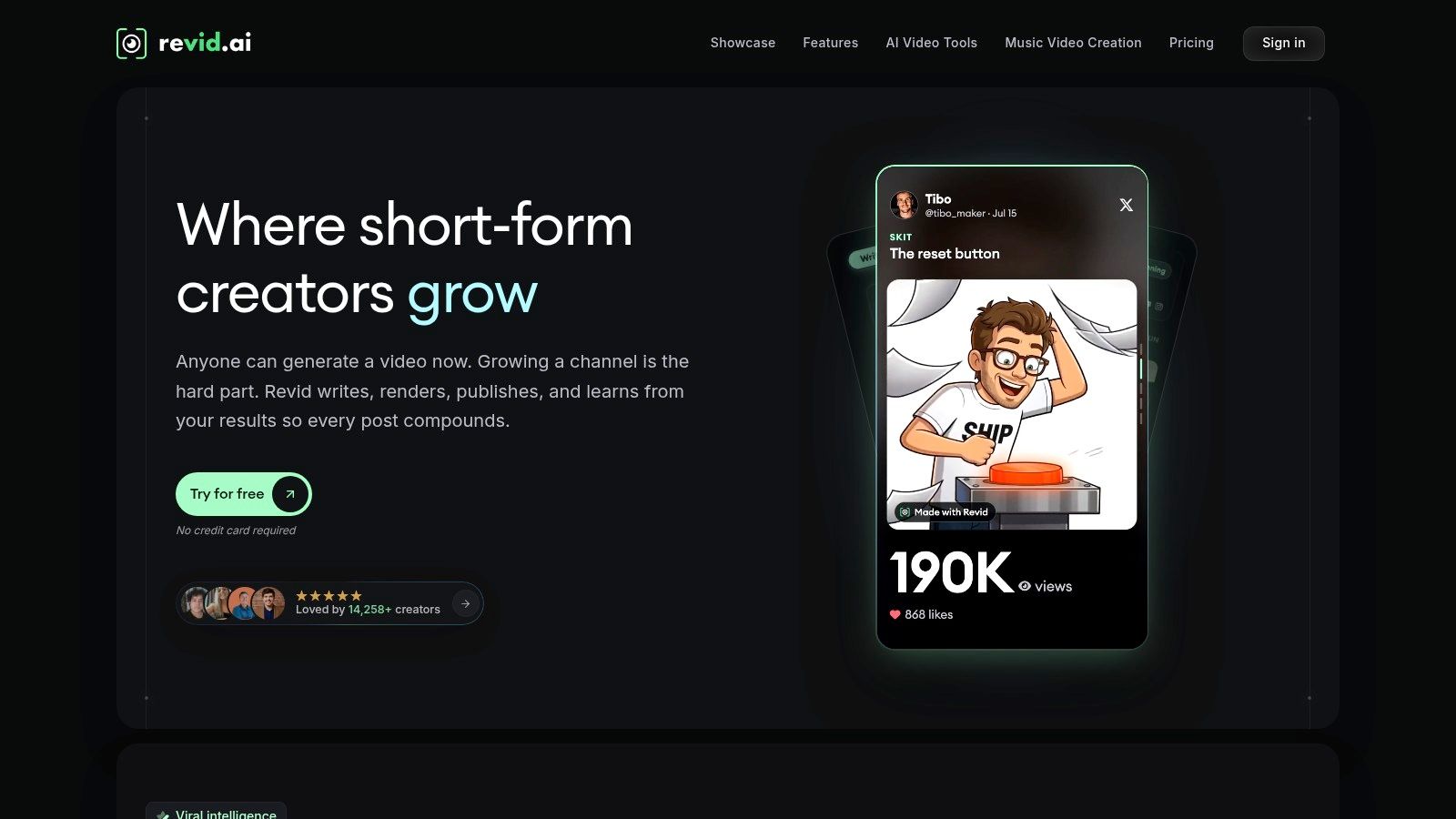
The workflow starts before editing. Advanced search helps identify trending content, scripts can be generated quickly, and the editor lets creators customize the result before publication. That order matters. A TikTok video maker that begins with a proven angle is more useful than a blank timeline when the bottleneck is deciding what to make.
revid.ai also automates creation from sources such as blogs, subreddits and social media accounts. For a brand sitting on articles, or a creator repurposing community threads into short explainers, that removes the manual step of rewriting everything into a script. Captions, formatting and pacing still need review, especially for names, claims and on-screen text that sits near interface edges.
Where It Fits Best
It's the right choice when speed, volume and a steady flow of short, captioned posts matter more than frame-by-frame control. Solo creators and small teams can test more hooks without rebuilding each video from scratch. It fits less well when a project needs a presenter-led performance, precise brand typography or careful localization review.
The practical test is simple. Generate a small batch from one source, check captions muted, verify music rights and disclosure needs, then export only the cuts that pass preflight.
Localizing One Video for Several Markets
Translating captions isn't localization. A market-ready version may need a new hook, on-screen text, humor, pacing, subtitles, call to action and cultural references, because a literal translation can still fail.
TikTok's 2025 trend reporting highlighted AI dubbing through TikTok Symphony as a way for brands to communicate in native languages.
| Approach | What Changes | Main Risk |
|---|---|---|
| Subtitles only | Captions translated, footage unchanged | Idioms and humor do not transfer |
| AI dubbing | Voice track replaced, visuals unchanged | Pronunciation and lip sync errors |
| Native re-edit | Hook, pacing, text and call to action rewritten | Higher production time per market |
A fluent reviewer should check idioms, pronunciation, reading speed and synthetic voice quality before publishing. Three questions help per market. Does the hook still land? Does on-screen text fit at reading speed? Does the call to action make sense locally?
One video in many languages can cut production cost while raising brand risk if native review is skipped. Schedule each variant only to accounts and time slots for its language.
AI Disclosure Before You Publish
Disclosure can't be left to automation. Recent research found that roughly 25% of posts appearing in common non-AI TikTok hashtag searches contained AI-generated content, while only about half carried an AI label.
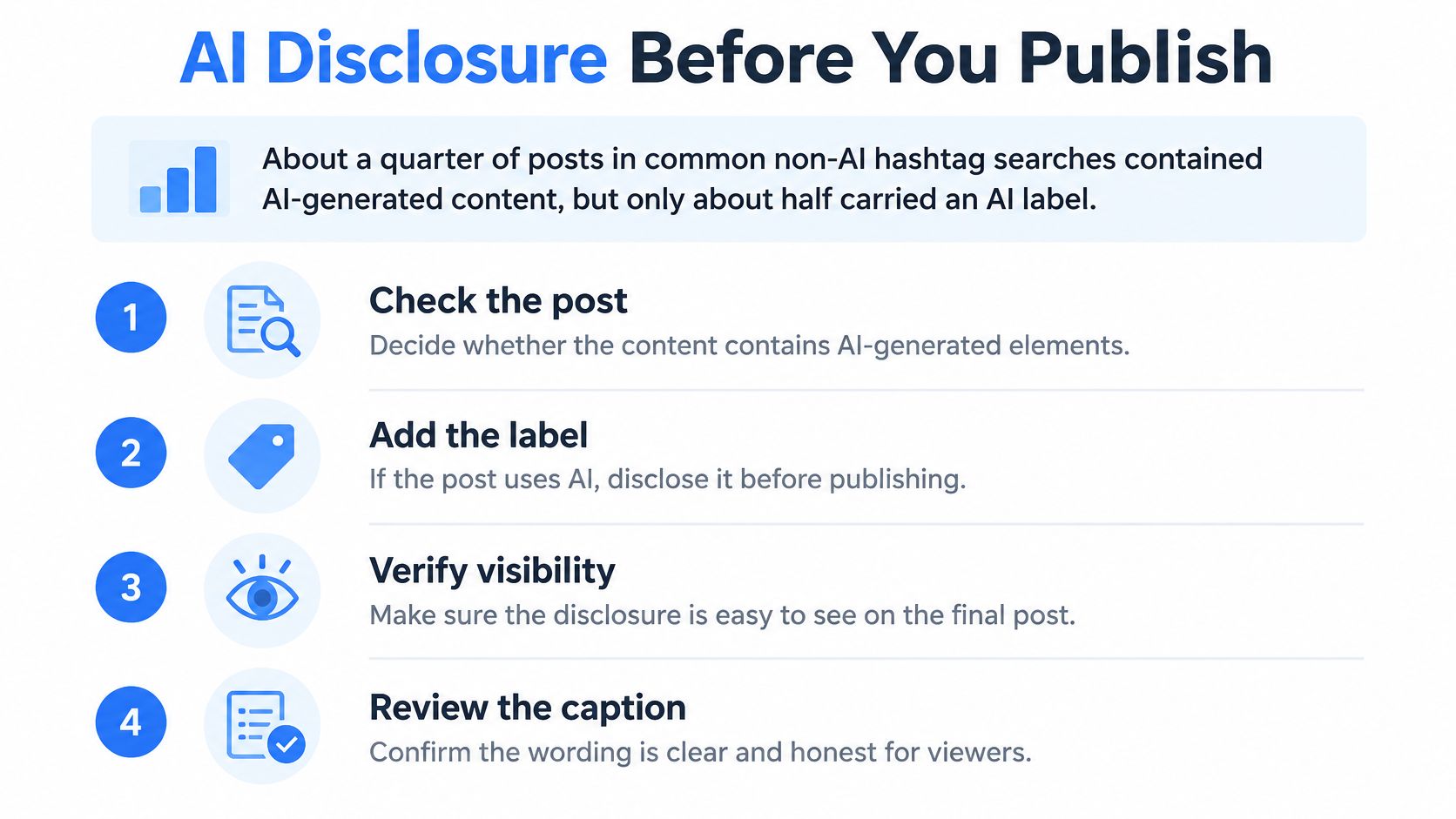
Use a short decision tree before publishing:
- Identify synthetic elements: Does the video show a realistic synthetic person, cloned voice or generated scene?
- Label and disclose: If yes, apply the platform AI label and add a plain caption disclosure where viewers see it early.
- Keep provenance: Retain source files, prompts and the edit log so origin can be shown if challenged.
- Check brand rules: Confirm who approves synthetic characters, voices and claims.
Small AI overlays did not significantly change likelihood of liking, commenting or sharing in that research, so disclosure is mainly about trust, not performance protection. PostWing prohibits using the service to generate, schedule, or upload deepfakes, non-consensual intimate imagery, or other harmful AI-generated content, including to YouTube.
Check the label on each platform after cross-posting. A disclosure preserved in one caption can disappear when text is adapted elsewhere.
Schedule Finished Videos on a Steady Cadence
Batching makes a steady schedule realistic. Finish a week of videos in one session, then schedule instead of editing daily.
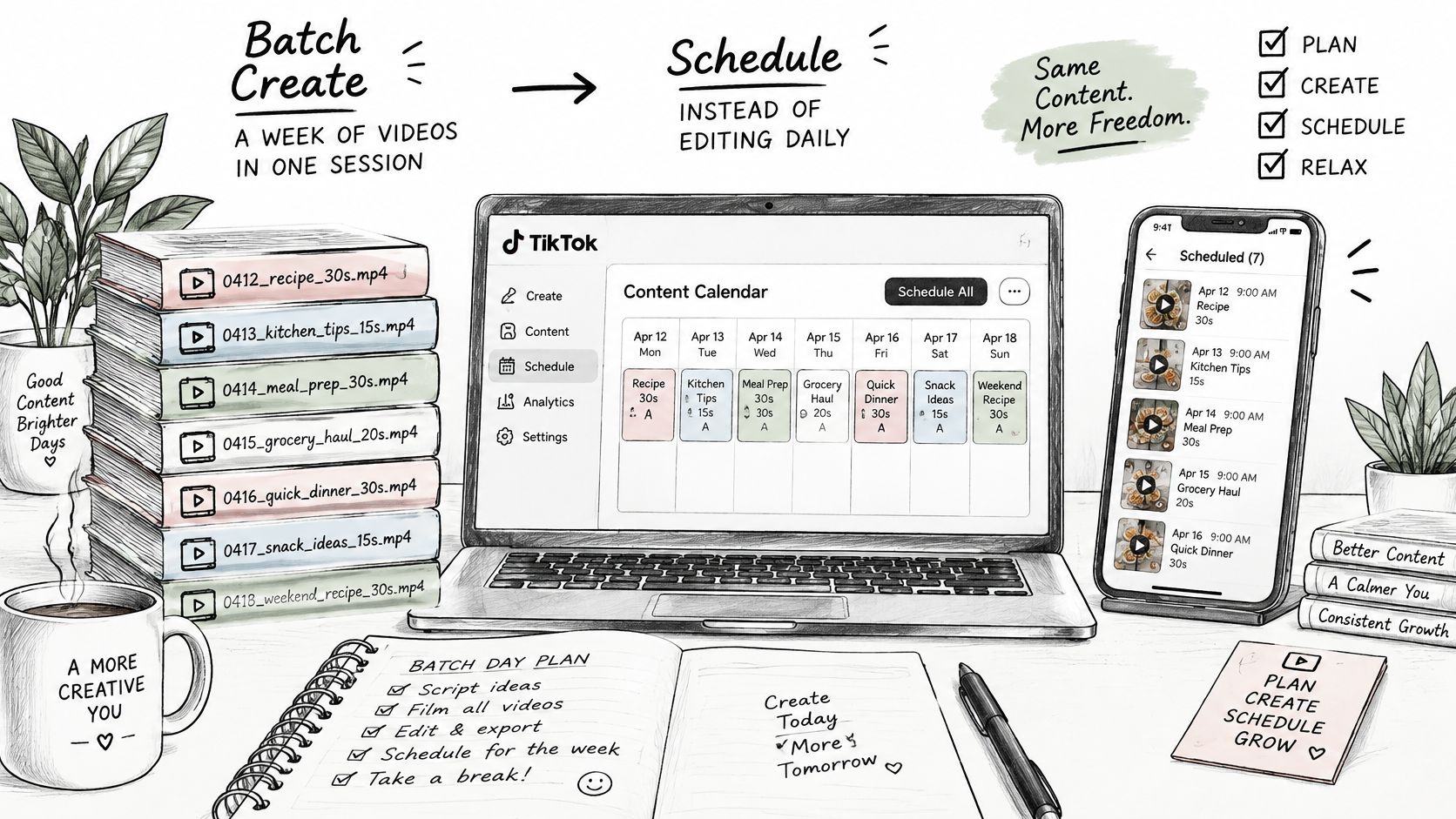
Name each file with date, topic and variant, such as 0412_recipe_30s, so folders and calendars match. Set a cadence that can be kept, for example three to five posts a week, and spread posts across time slots that suit the audience's time zone.
Choose the cover for each post. Videos can use a cover image or a frame time, and the default frame time is 1000ms, which may land on a black or blurred frame.
Before queuing, confirm disclosure labels and language variants on every post. Keep a buffer of two to three days of finished videos, then review completion and watch time after seven days rather than raw views.
Connect Accounts and Run a Test Batch
Connect one account group, run one test batch and confirm the export before scheduling more.
- Connect through official login: Each account connects through the platform's official login, so passwords aren't collected.
- Check TikTok options: Review visibility, comments, duets, stitches, AI-generated status and draft settings. Visibility defaults to public, while comments, duets and stitches default to true.
- Map videos carefully: Match each file to the right account before queuing, because the wrong profile is the costliest scheduling error.
- Test five finished videos: Use different covers and time slots, then confirm each item on the calendar.
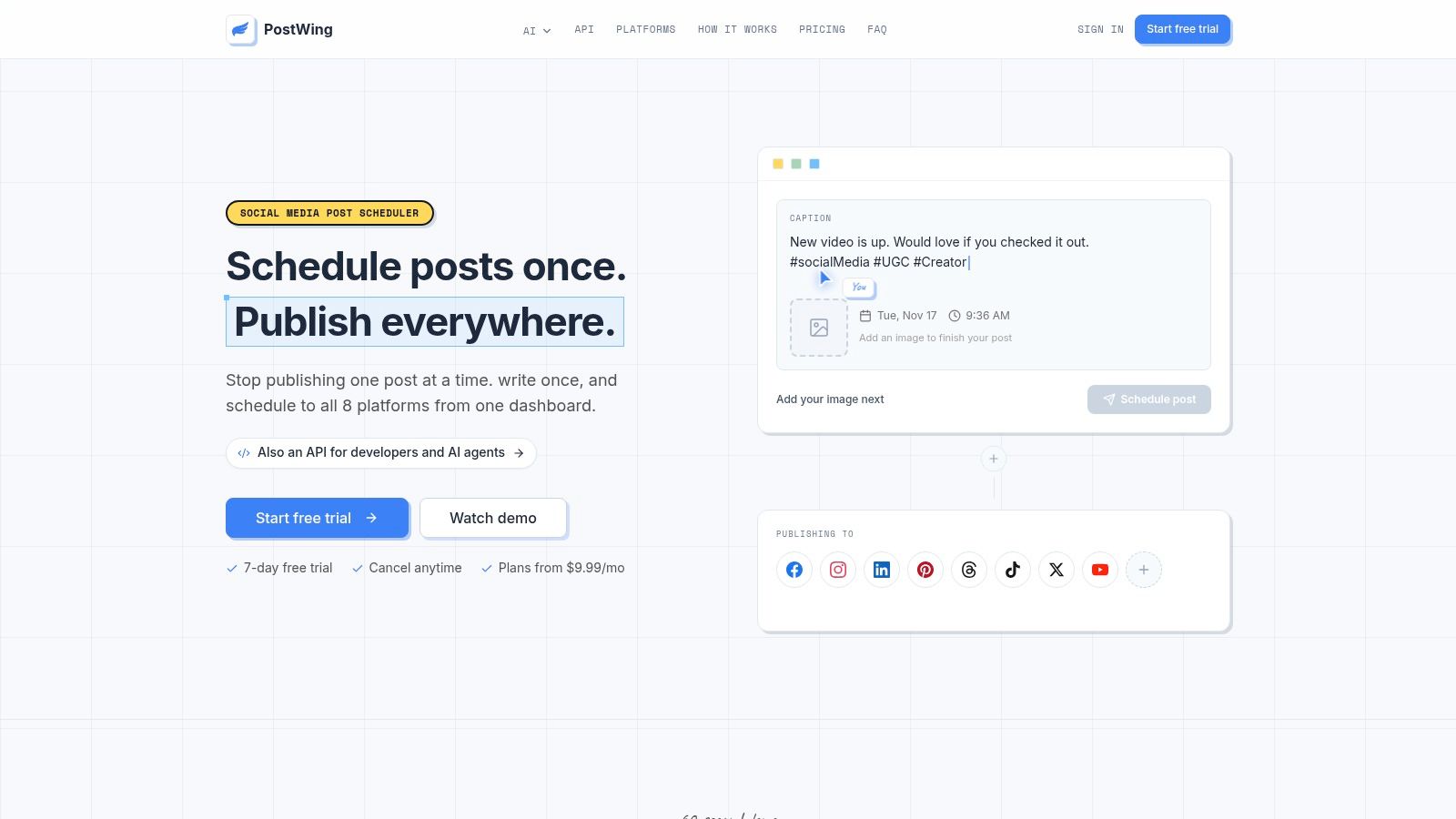
Once the batch checks out, scale up. PostWing lets users schedule text, image, and video posts to 8 platforms from one dashboard and bulk schedule up to 50 videos or images spaced on a chosen cadence.
Export one compliant master today, run preflight and schedule the first test batch this week.
Start with one checked master file and a five-post test batch in PostWing today, confirm every cover, account and disclosure on the calendar, then scale the cadence only after that first batch publishes cleanly.